Mirror Unit
The main Mirrorly smart mirror with integrated AI sensors and LED array.
Follow these simple, step-by-step instructions to get your Mirrorly connected, calibrated, and ready for your first AI skin scan.
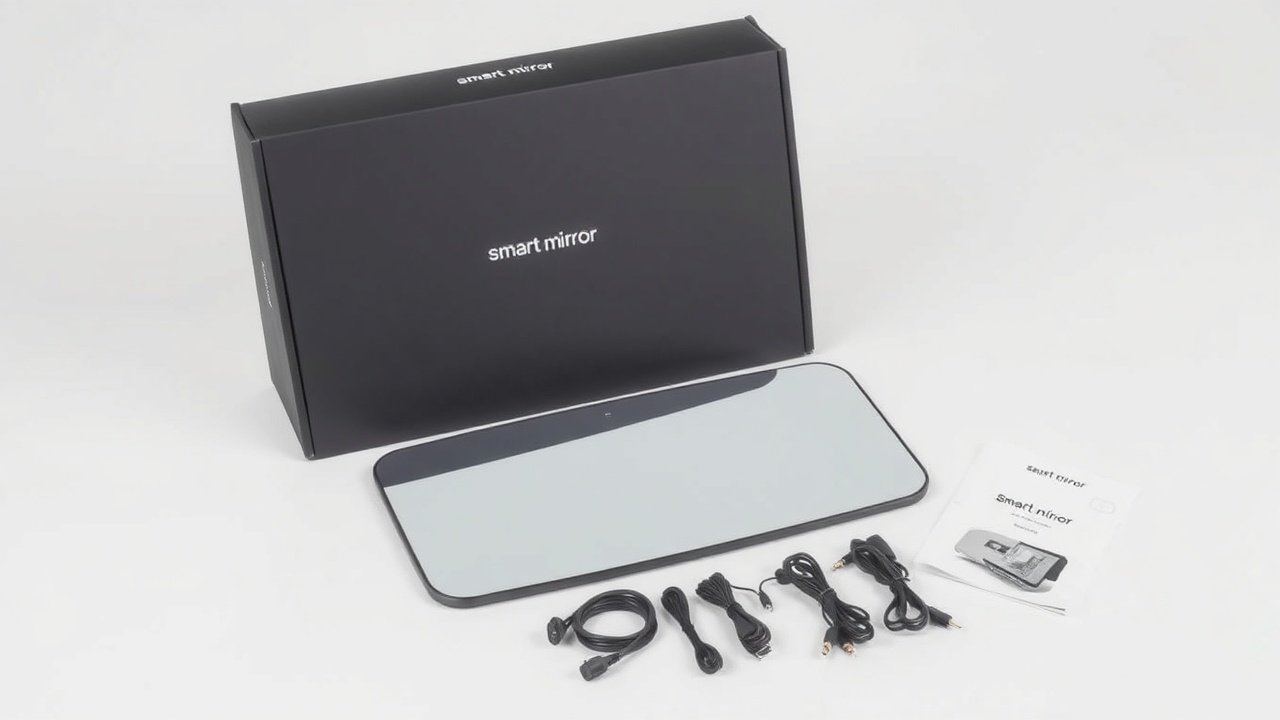
Before you begin, ensure you have all components. Your box includes everything needed for a secure and professional setup.
The main Mirrorly smart mirror with integrated AI sensors and LED array.
Dual-voltage power adapter (100-240V) with integrated safety features.
Wall bracket, screws, anchors, and a sleek countertop stand adapter.
A compact reference card with QR codes for app downloads and support.
Select a spot with a grounded electrical outlet nearby and consistent ambient lighting. Wall mounting is recommended for stability; the vanity or countertop is ideal for accessibility.
Watch the video: Follow our 3-minute installation walkthrough to securely attach the wall bracket. Ensure it is level before locking it in place.
Plug in the power cable and turn on the mirror. Select your home Wi-Fi network from the on-screen menu. Ensure your router is 2.4GHz compatible for the best connection.
Download the Mirrorly App from the App Store or Google Play. Open the app, select "Pair Device," and scan the QR code on the back of your mirror.
Complete the onboarding by standing in a well-lit area and running your first skin scan. This calibrates the sensors to your specific skin tone and texture.
Encountering a hiccup? Here are solutions to the most common setup issues.
Documentation
Download the comprehensive PDF manual for detailed schematics, safety warnings, and advanced configuration options.
Our support team is available 24/7 to assist with your installation or any questions about your Mirrorly experience.